Documents & artifacts
Documents is the unified library for intentional output. It contains authored Markdown and agent-created deliverables alongside imported images, diagrams, PDFs, audio, video, presentations, spreadsheets, and tables.
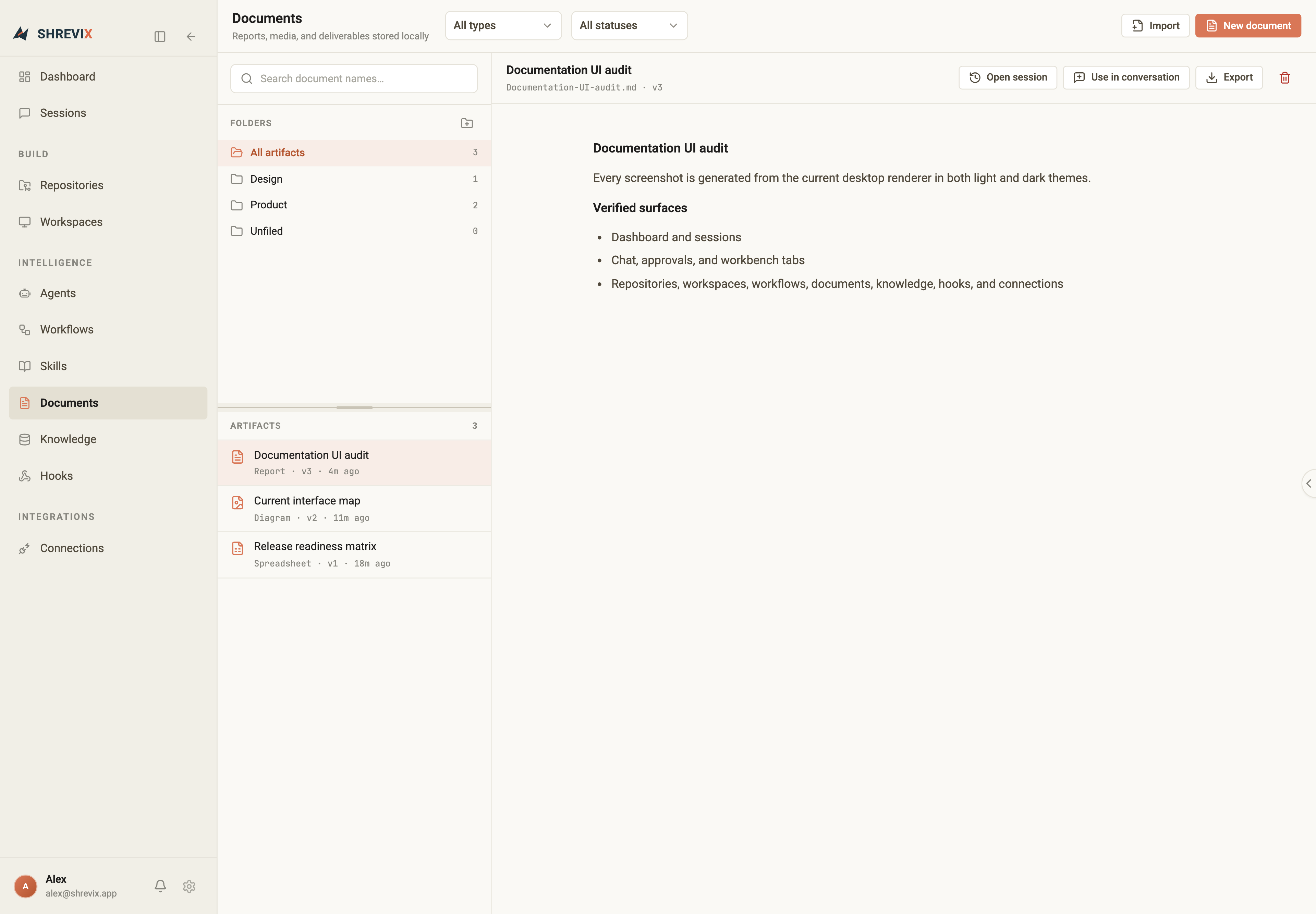
Browse the library
Section titled “Browse the library”Use folders, search, type filters, and status filters to narrow the collection. Create a folder from the Folders header, import an existing file, or start a new Markdown document from the page header. Drag an artifact onto a folder to file it; dragging it to Unfiled removes its folder.
The folders area and artifact list have a vertical resizer, so you can give the longer of the two the space it needs. Each artifact row keeps its name and version details compact; select it to preview, export, inspect, or delete it.
Preview the right format
Section titled “Preview the right format”Selecting an artifact opens the appropriate viewer:
- rendered Markdown and text, including Mermaid diagrams in Markdown,
- images, diagrams, and charts,
- audio and video playback,
- PDFs, and
- spreadsheet and tabular data.
Presentations and formats without an inline viewer open in the associated desktop application instead.
The library stores managed copies locally and can export a selected version back to the filesystem.
Mermaid diagrams
Section titled “Mermaid diagrams”Use a fenced mermaid or mmd block in Markdown to render flowcharts,
sequences, state diagrams, and other Mermaid-supported diagrams. The same block
renders in desktop Documents, workspace Markdown preview, conversation
Markdown, and the paired remote viewer. Switch to Source whenever you need
to inspect or edit the diagram definition.
```mermaidflowchart LR Desktop --> Remote Remote --> Approval```Provenance
Section titled “Provenance”Agent-created artifacts retain the session and tool that produced them. The Source inspector exposes that lineage, and Open source session jumps back to the exact conversation.
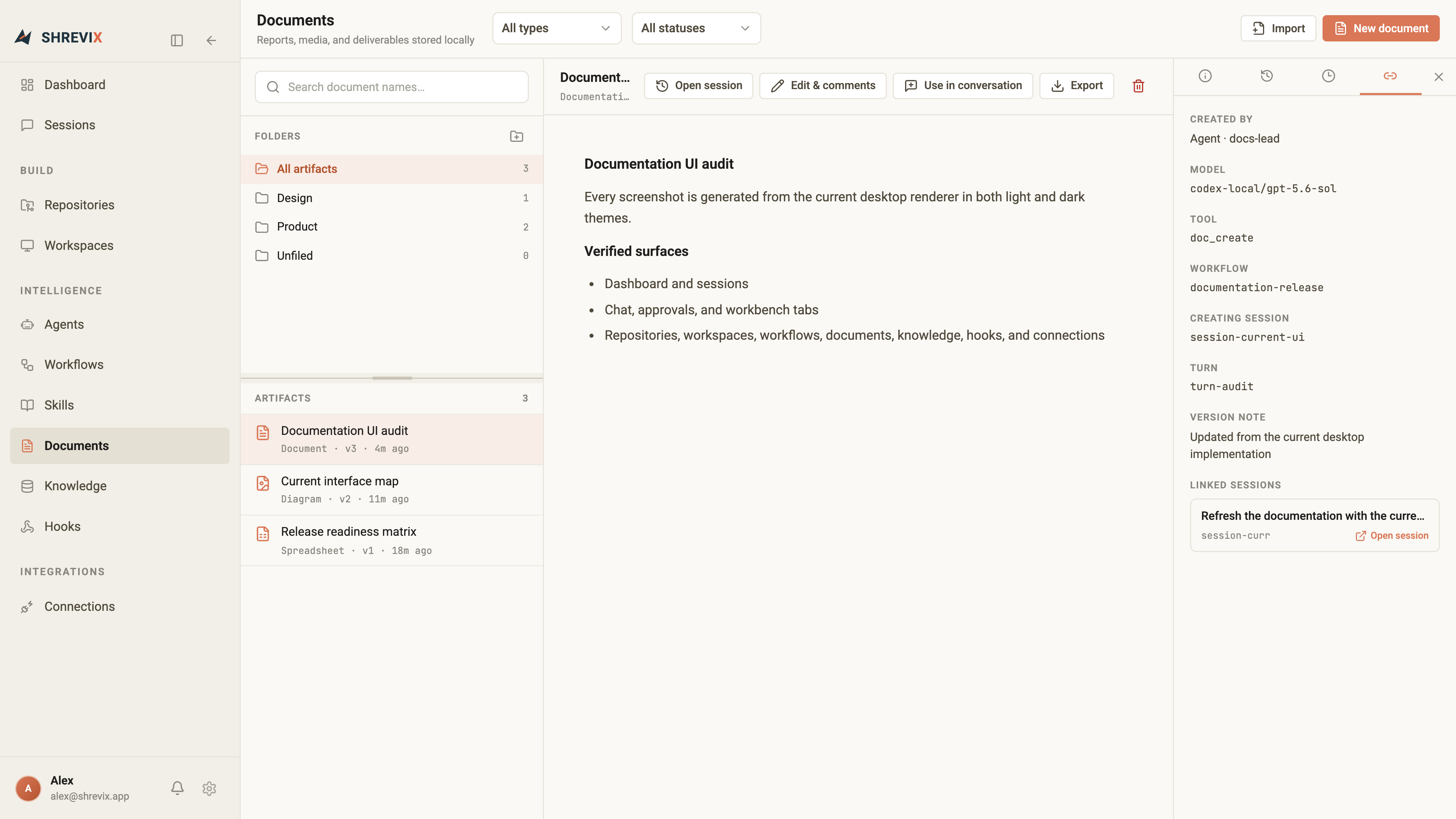
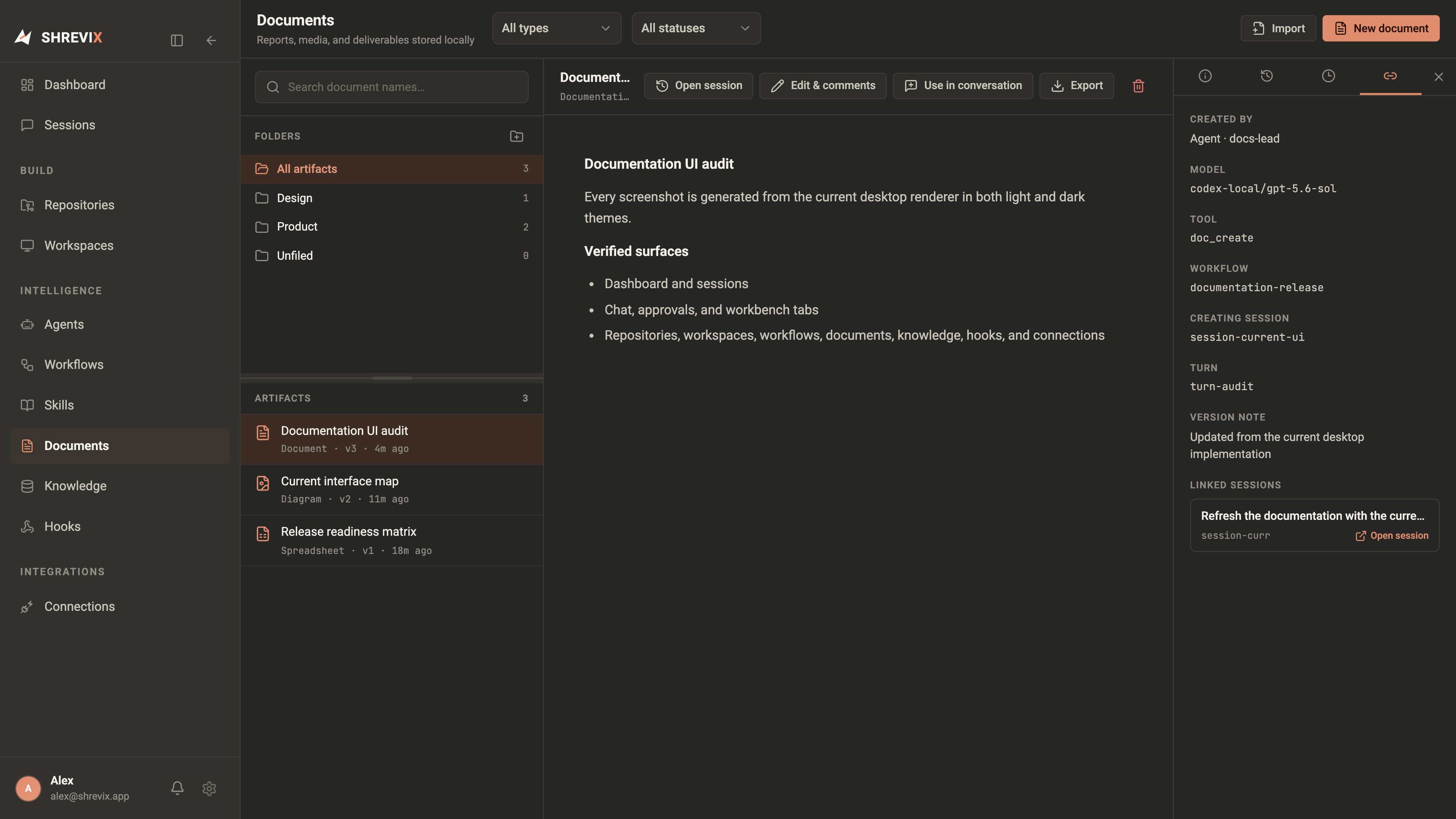
Authored documents
Section titled “Authored documents”Markdown documents keep the full authoring experience. An agent can create or update a document through tool calls, and the transcript shows a clickable artifact card instead of pasting a long deliverable into chat.
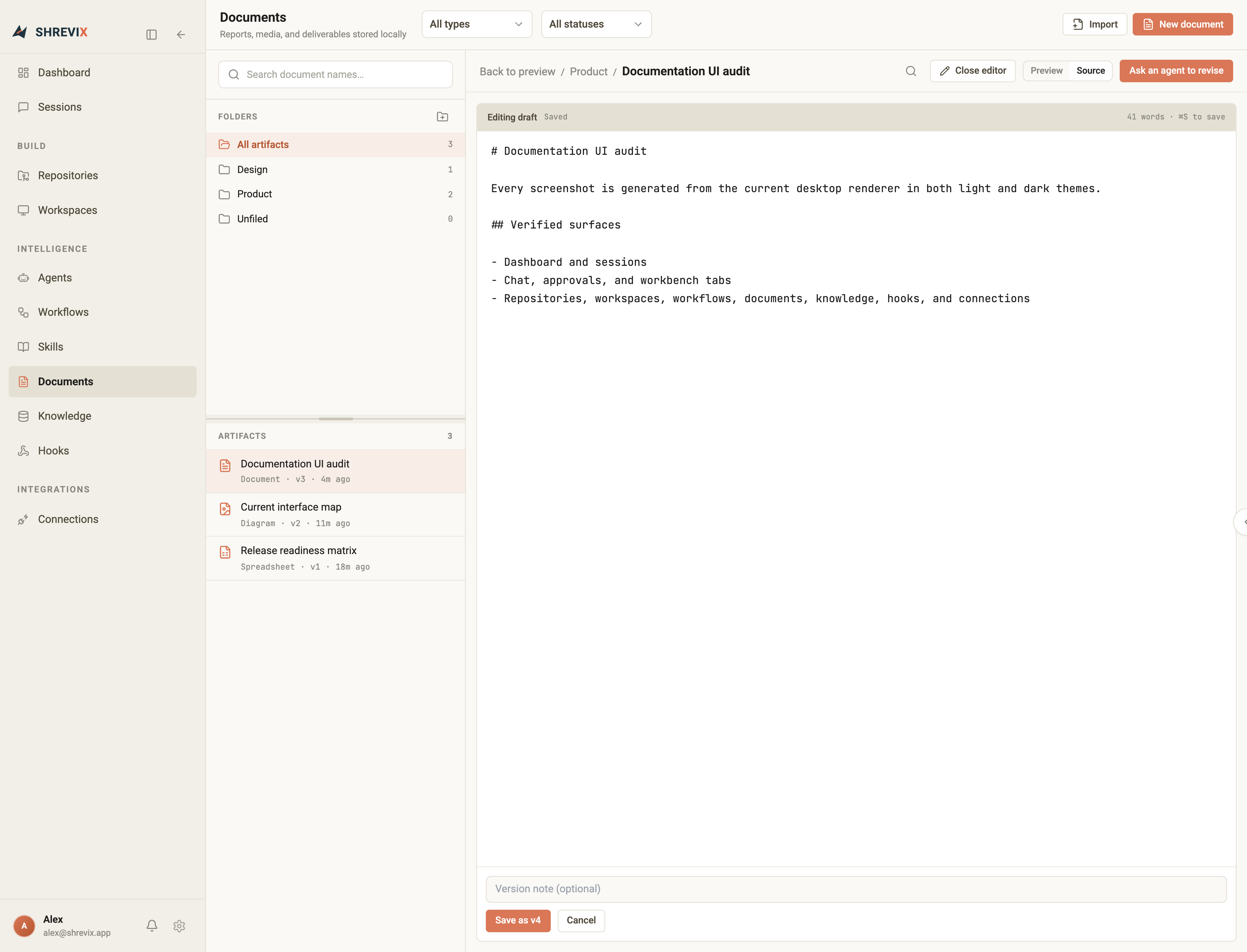
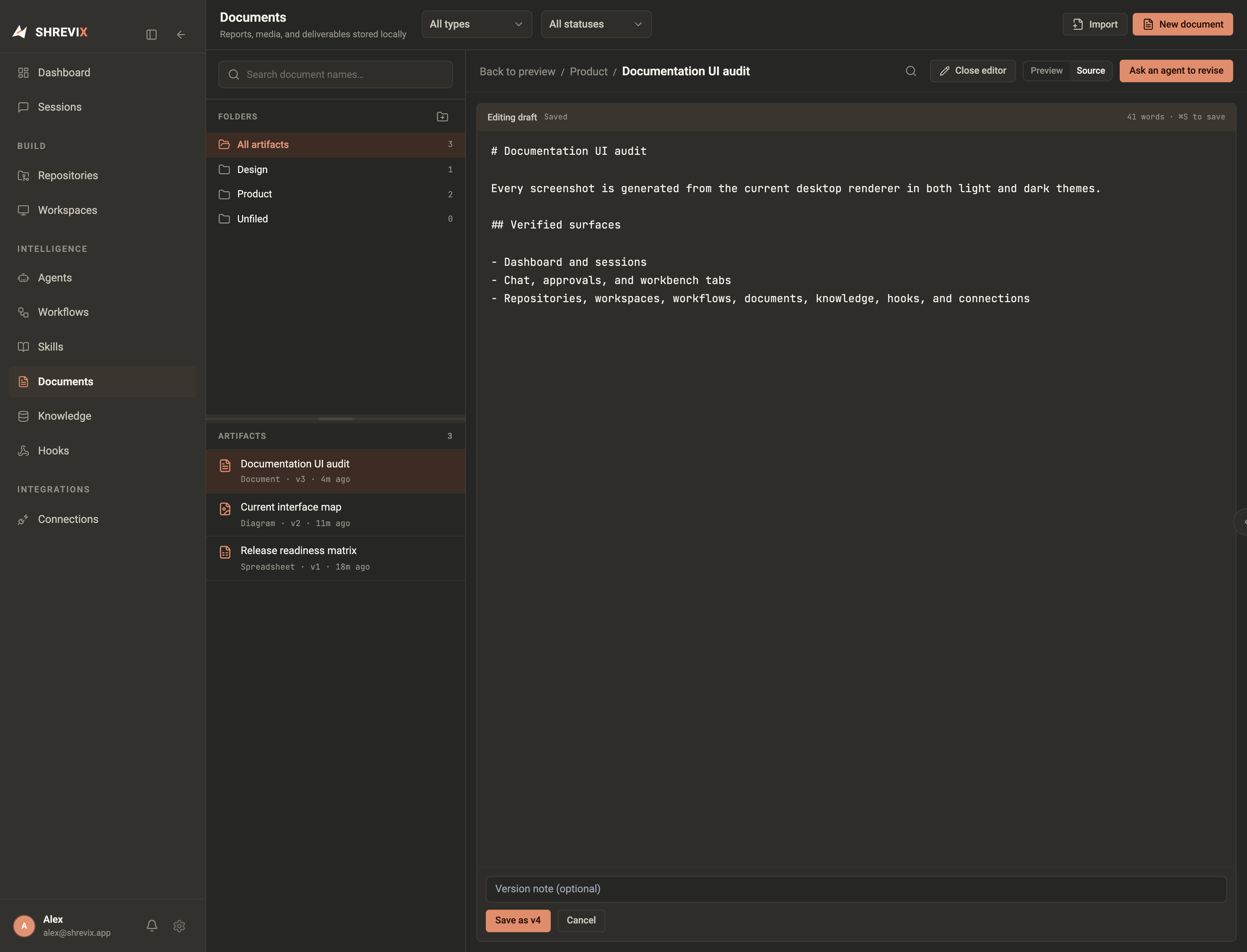
Click Edit & comments once to edit in place. Markdown exposes Source and Preview modes in the same editor, with a version note and ⌘S to save. The review rail begins collapsed while editing to preserve writing width; open it from the edge control when you need comments, history, or details.
⌘F searches the open document in reader mode. Matches update as you type, remain highlighted while you navigate results, and are restored when you leave and return to that document.
Comments
Section titled “Comments”Select text to anchor a comment to an exact passage. Reply, resolve the thread, or ask an agent to address it. Agent revisions land as a new version and keep a resolution note.
Versions
Section titled “Versions”Documents are never edited destructively. Every change records a new version, author, and note. View past versions or restore one as the latest head.
In the workbench
Section titled “In the workbench”Open a document beside the conversation in a Documents tab, or use the session’s Artifacts panel for the output created by that run. Opening the full Documents page keeps the same selected artifact.
Read on another device
Section titled “Read on another device”A paired Shrevix Remote device can browse the Documents library and open supported output full screen. This is useful for reviewing a report, Markdown draft, image, PDF, audio, video, or table without returning to the desktop. Editing and local file management remain desktop workflows.