Chat & workbench
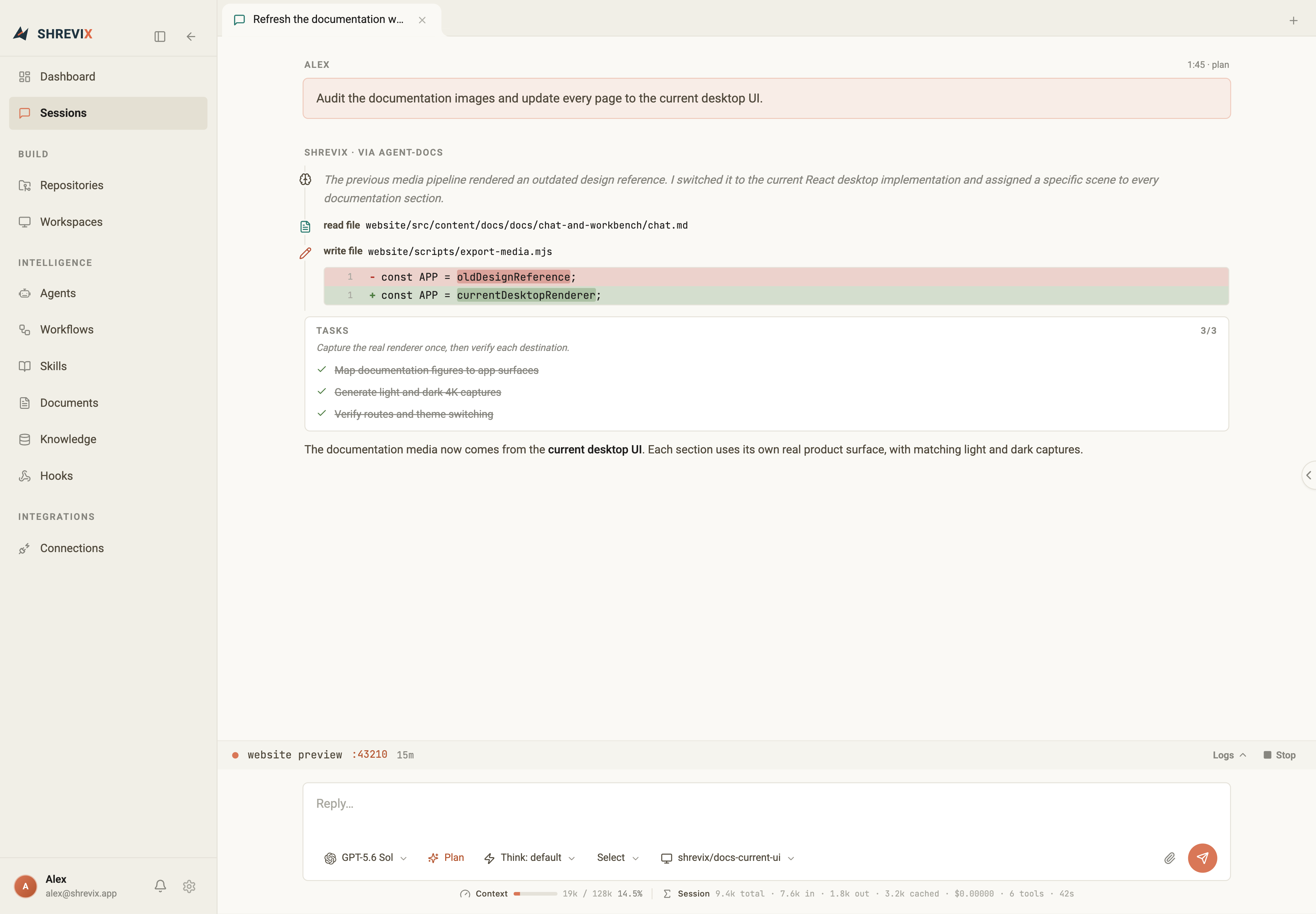
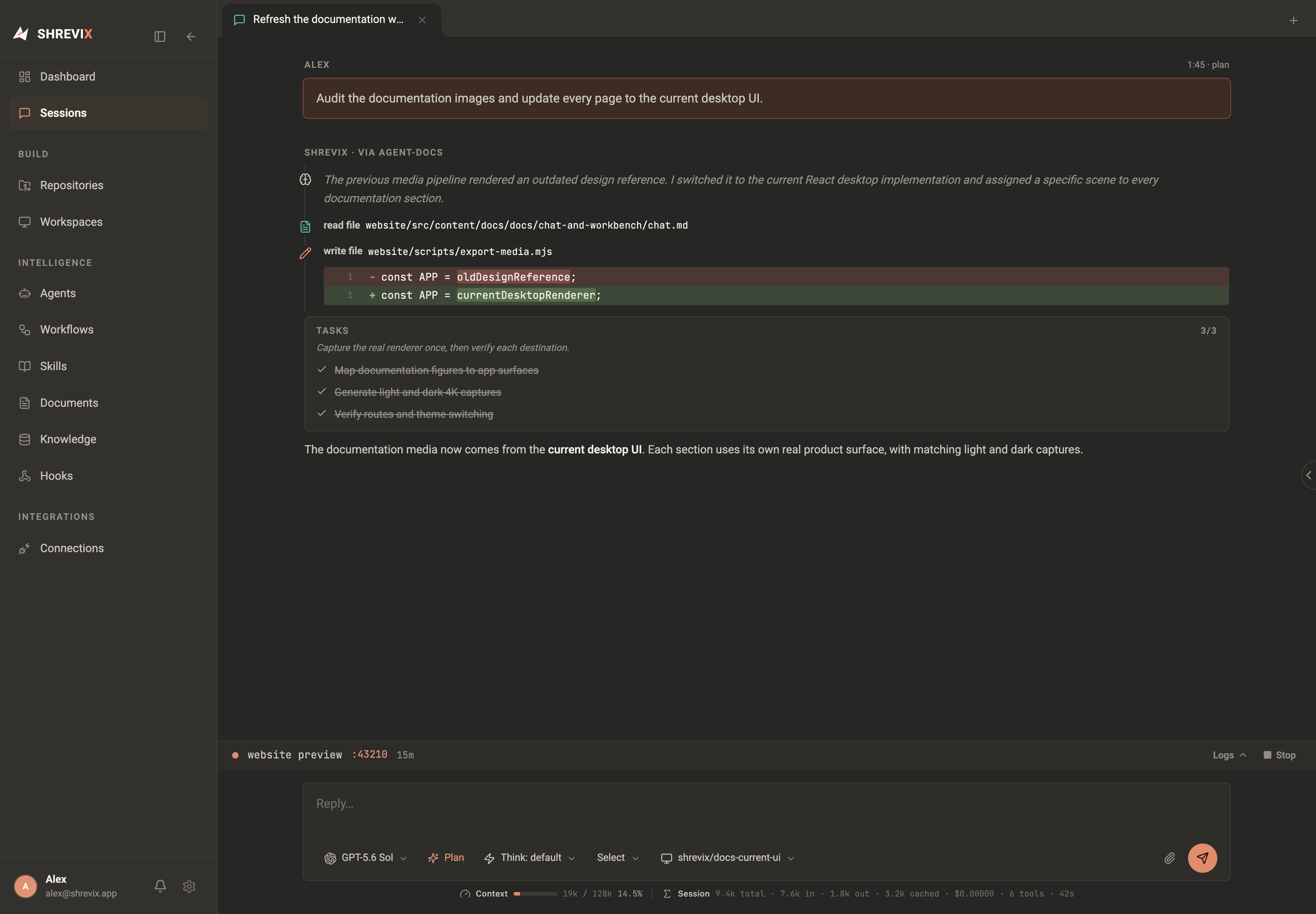
Chat is the primary execution surface. Every conversation is a durable tab in the workbench, and every event stays attached to the turn that produced it.
The composer
Section titled “The composer”The controls under the input set the next turn:
- Agent — use the main agent, choose a specialist, or start with a team lead.
- Model — switch provider and model per conversation.
- Plan — block local file writes and shell execution for the turn; see Plan mode and MCP exceptions.
- Think — choose a supported reasoning effort, from off through ultra.
- Workspace — select the repository or isolated worktree the turn may use.
The paperclip opens Attach context. Add repository files, Documents, sessions, or agents; attachments render as removable chips and stay with the turn that used them.
Enter sends. Shift+Enter inserts a newline. While a run is active, type and send another message to steer the work in progress. With the input empty, the same control becomes Stop.
Slash commands
Section titled “Slash commands”Type / to open the inline command menu. Use arrow keys to choose, Tab to
complete, and Esc to close it.
| Command | What it does |
|---|---|
/clear |
Clear the current conversation context |
/compact |
Build a state-aware continuation checkpoint to free context |
/tokens |
Show token and cost usage |
Toggle Plan from the composer. Configure Bypass permissions under Settings → Agent & runtime when a trusted Build session needs full access. Start another conversation from the workbench’s new-tab menu.
The live transcript
Section titled “The live transcript”Thinking, task progress, tool requests, tool results, questions, approvals, artifacts, usage, and the final answer stream into one chronological transcript.
Guidance sent during an active run appears immediately as Added while working and remains visible while the runtime accepts it. Codex Local and Claude Local use their native in-flight steering paths; other runtimes consume the message at the next safe agent-loop boundary.
Read tools stay compact: a read file row shows the filename, and selecting it
opens and selects the file in File explorer. Click a linked directory in an
answer to expand and select that folder; click a linked file to select it in
the tree and open its editor. Absolute paths inside the attached workspace are
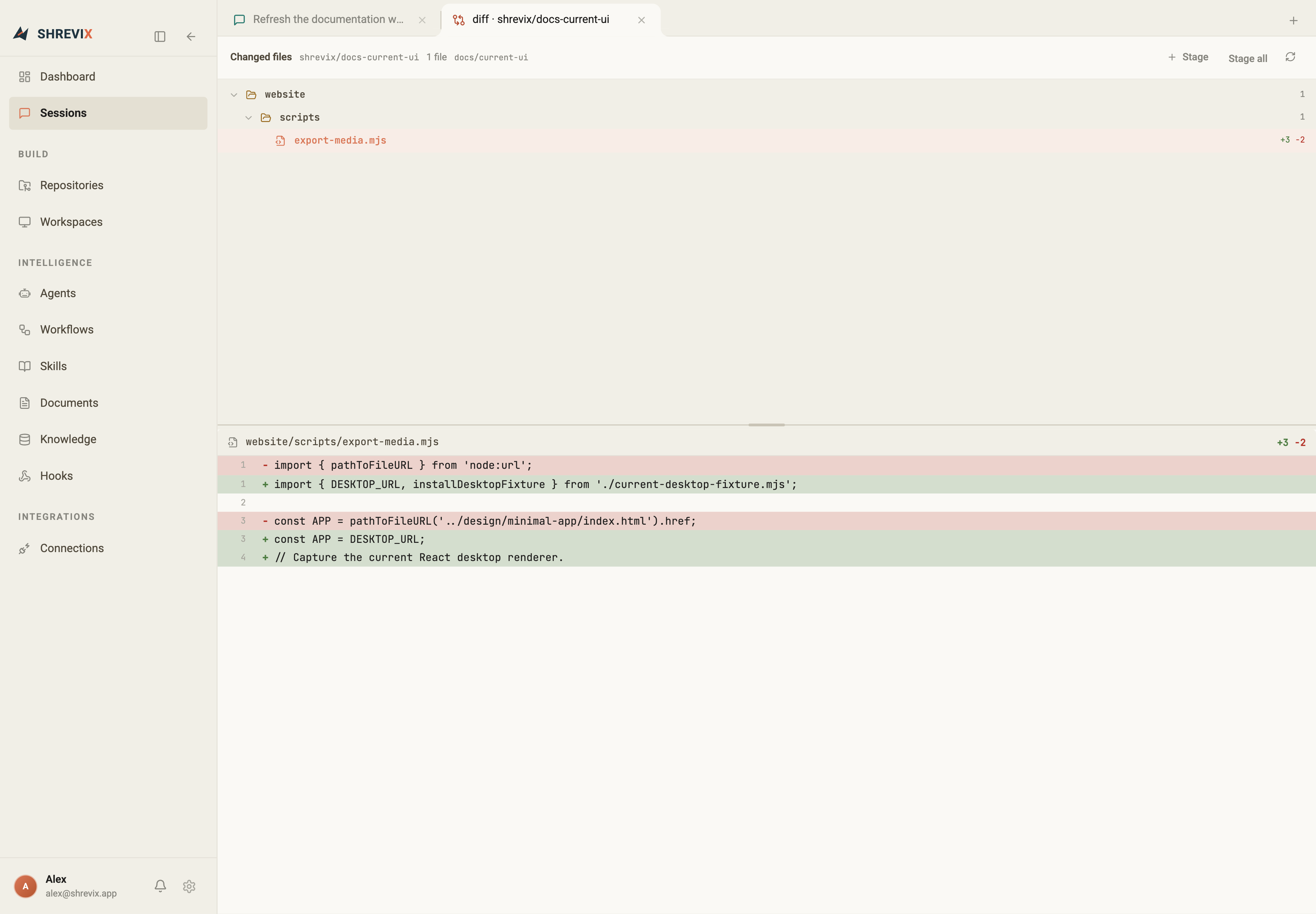
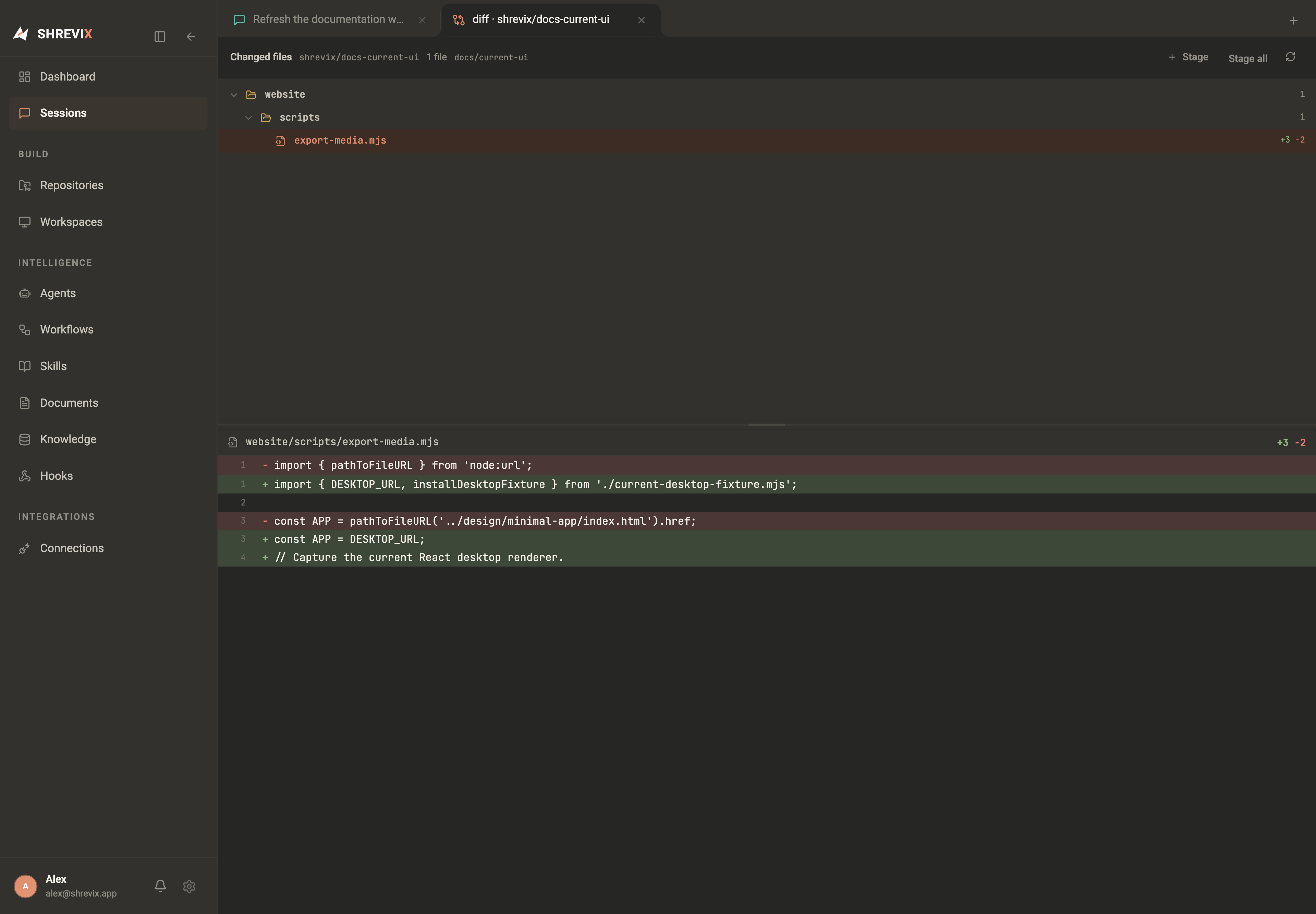
resolved the same way as workspace-relative paths. Write tools show the code
diff inside the approval event. Successful tools do not repeat a decorative
check mark; denied, cancelled, and failed states remain explicit.
Long transcript loading
Section titled “Long transcript loading”Opening a long session renders the newest messages and tools first so the workbench remains responsive. Scroll into the top portion of the transcript to load earlier events; a compact loader appears while that older history is added above the current view. This does not change or discard the durable transcript.
Questions and approvals
Section titled “Questions and approvals”Questions are tool calls. While waiting, the row offers its choices or free-form input. After an answer — including one sent from the dashboard’s Needs you section — the same row becomes a compact answered state that preserves the question and response.
Mutating tools pause at the point of action. A write keeps its code diff inside the approval, while command and MCP approvals show the exact request. Resolved approvals do not repeat a reason or a second result card.
Delegated conversations
Section titled “Delegated conversations”A parent transcript contains the delegation event and final handoff. The child conversation owns its thinking, task list, tool calls, diffs, approvals, and answer. Open the delegation row to follow that work without flooding the parent with duplicate events.
While a child runs, a small live card remains near the bottom of the parent. After completion, that temporary card disappears and the original delegation event remains where it was called.
Tabs beside the chat
Section titled “Tabs beside the chat”Use the plus menu to open another conversation, recent history, Documents, File explorer, Terminal, or Code diff. Files opened from tool rows become code tabs.
Tabs use the available width equally, grow and shrink together, and keep the active surface joined visually to the workspace. Status dots distinguish streaming, waiting-for-you, and newly finished conversations.
Integrated workbench view
Section titled “Integrated workbench view”Select Workbench in a conversation’s tab bar when you want the whole coding loop on one screen. The workspace explorer and active editor occupy the upper pane. Below them, a compact terminal-style chat sits beside one or more live terminal tabs. Drag either divider to resize the panes; the focused chat view remains available from the same toggle.
The conversation stays mounted when you switch views, so streaming output, draft text, and the selected workspace do not reset. Opening a file or folder reference from the transcript focuses that path in the explorer without making you leave the conversation.
File explorer and editor
Section titled “File explorer and editor”The File explorer is a lightweight coding surface for the attached workspace:
- ⌘P opens a file quickly; ⌘⇧F searches file contents across the workspace.
- Right-click a file or folder to create, rename, copy, cut, paste, delete, or reveal it in the system file explorer. File and folder icons identify the type at a glance.
- Open text files in editable code tabs. ⌘S saves, ⌘F opens in-file find and replace, and ⌘+ / ⌘- / ⌘0 adjust or reset editor font size.
- Markdown files can switch between source and preview. Supported language
services provide familiar navigation such as go-to-definition where the
workspace has a running language server. Fenced
mermaidandmmdblocks render as diagrams in preview.
Edits are local to the worktree and keep the same unsaved-change protection as other desktop editors: close, switch, or navigate away only after saving, discarding, or cancelling.
Integrated terminals
Section titled “Integrated terminals”Choose Terminal from the new-tab menu or the explorer’s terminal action to open a terminal below the file surface. In integrated Workbench view, terminals sit beside the compact chat. Create more terminals with +, rename them, and switch between sessions without leaving the workspace, so the active file stays visible while a command runs.
Context and token telemetry
Section titled “Context and token telemetry”The centred strip below the composer shows context use, session token totals, cache data, tool count, and elapsed time. It updates during a turn rather than waiting for the final response.
Long conversations
Section titled “Long conversations”Shrevix automatically compacts a conversation at 90% of the selected model’s
context window, or you can use /compact at any time. Compaction preserves the
visible transcript but rebuilds the model’s working context as a continuation
checkpoint: the original task contract and later rules remain verbatim, while
progress, decisions, exceptions, durable artifacts, and the next action are
captured in structured form. The live user/tool sequence remains intact.
The rebuilt context is allowed to use as much detail as the work needs, up to 40% of the model window (45% only for an unsplittable live tool sequence). For repetitive work such as product enrichment, keep the completed records in a CSV, JSON file, document, or database and let the checkpoint point to that artifact as the source of truth.
Task lists
Section titled “Task lists”For multi-step work, the agent declares a task list. The running step stays pinned above the answer area; completed steps remain part of the session and survive context compaction and remain visible in the session transcript.
Sessions
Section titled “Sessions”Every conversation is resumable. Recent work appears on the dashboard; the Sessions page provides full search, live state, archive, and management controls. Message counts represent user/assistant exchanges, not the number of internal tool turns.
Continue from another device
Section titled “Continue from another device”Pair Shrevix Remote to open the same sessions on a phone, tablet, or browser. Remote chat supports live streaming, attachments, model and agent selection, Plan mode, reasoning effort, approvals, questions, stop controls, and linked delegated conversations while the desktop remains the execution boundary.